Shorter Auto-Lock, Fewer Peeks

Trim the auto-lock timer to thirty seconds or one minute so the display sleeps before wandering glances gather information. Practice tapping the power button whenever you set the phone down. This tiny move dramatically reduces opportunities for quick peeks during commutes, meetings, and checkout lines, while reinforcing a reflex that makes privacy effortless rather than paranoid or inconvenient.

Hide Sensitive Previews

Disable message previews on the lock screen, keeping content hidden until you authenticate. Names, codes, and subject lines can reveal more than you realize, especially around colleagues or strangers. Let notifications show quietly, or collapse them entirely, so only a generic alert appears. This small tweak prevents accidental leaks and gives you control over when and where sensitive information is actually displayed.

Strengthen Authentication Habits

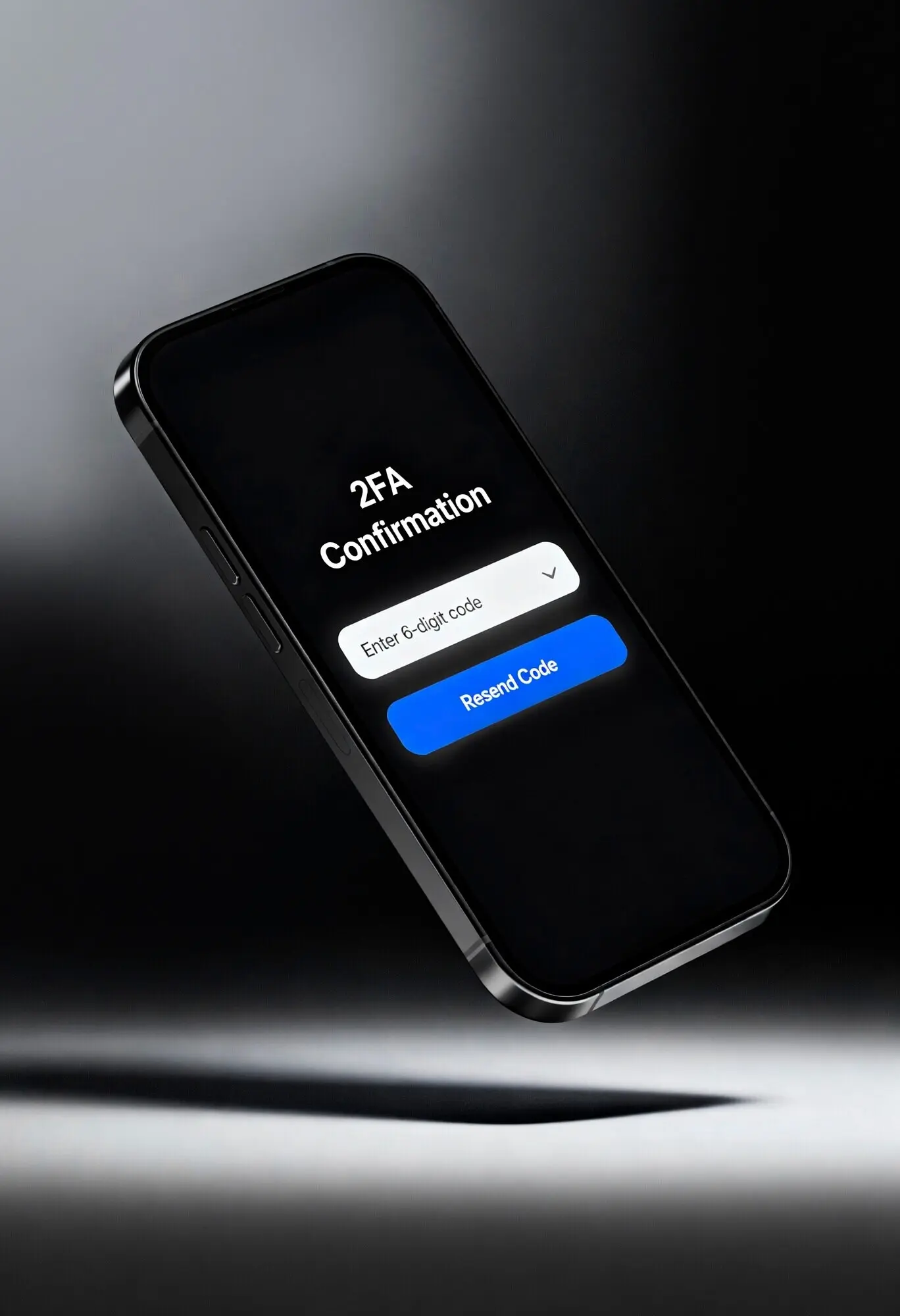
Most breaches begin with weak or recycled credentials, so anchor your day with fast, repeatable authentication rituals. Update a passcode, enable two-factor, or check your password manager’s alerts. A friend nearly lost cloud storage after a reused password surfaced in a breach, but two-factor saved everything. These habits are quick, empowering, and cumulative; the more you practice, the less you worry when phishing attempts inevitably arrive.

Passcode Hygiene That Actually Sticks

Switch from a four-digit code to a six-digit or longer alphanumeric passphrase. Avoid dates and predictable patterns. Each morning, perform a five-second check: could a roommate, partner, or coworker guess this? If yes, change it now. This tiny ritual reduces risk dramatically, and because it happens during an existing routine—like unlocking before breakfast—it becomes automatic and sustainable without added friction.

Two-Factor Where It Counts

Enable two-factor authentication for email, cloud storage, banking, and your password manager. Prefer app-based or hardware tokens over SMS when available. Spend one minute weekly reviewing accounts that still lack an extra layer. This habit turns stolen passwords into dead ends, blocks most opportunistic attacks, and gives you confidence to ignore suspicious prompts or login alerts that occasionally appear from unexpected locations.

Password Manager Micro-Ritual

Open your password manager once a day, even briefly. Let it surface weak, reused, or compromised credentials, and fix one item per visit. Add your device passcode and carrier account to the vault if missing. This steady cadence prevents overwhelming weekend marathons and builds momentum, transforming daunting security tasks into a calm, ongoing routine that steadily strengthens your entire digital life.

Permission Review In One Minute

Open your privacy dashboard and scan location, camera, microphone, and contacts. Revoke anything you do not recognize or no longer need. Grant access “while using” instead of “always,” and prefer one-time permission for rare tasks. This quick weekly tour keeps unnecessary data silos from forming and blocks dormant apps from quietly tracking behavior you never intended to share.

Location Only When Needed

Navigation apps deserve location while in use; most others do not. Choose “Allow Once” or “While Using,” and disable background tracking unless a clear benefit exists. Check for geofencing and Bluetooth scanning settings that persist in the background. Reducing ambient location access improves battery life, minimizes profiling, and lowers the blast radius if an app or service is breached without your knowledge.

Quiet Mode For Cleaner Focus

Silence unnecessary notifications or move them into scheduled summaries. Social alerts, promotional emails, and random pings increase the odds of tapping malicious links in a hurry. By curating who can interrupt you—and when—you regain attention, notice suspicious messages more easily, and build a calmer environment where security decisions feel deliberate, not rushed or reactive during stressful moments.

Update Windows You Won’t Ignore

Pick a consistent time—perhaps charging before bed—when automatic updates can run without interrupting work or streaming. Keep a reliable Wi‑Fi connection saved, and confirm there is enough storage headroom. These tiny preparations prevent procrastination, which attackers exploit during vulnerability windows, and turn critical patches into a background habit that simply happens without stress or manual juggling.

Automatic Cloud Backups

Enable encrypted cloud backups and verify they run overnight. Once a week, check the last successful date and ensure key apps, photos, and messages are included. If storage fills, archive or export older media. With healthy backups, you can update or replace a device confidently, knowing a lost or damaged phone is an inconvenience rather than a catastrophe that derails your week.

Audit Old Devices and Sessions

Visit account settings for email, cloud, and messaging services, and sign out of devices you no longer use. Close stale web sessions and revoke third-party app access you do not recognize. This simple sweep removes forgotten doors into your data, reduces confusion during loss incidents, and ensures that recovery alerts and sign-in prompts only appear where they truly belong.

Stay Update-Ready and Backup-Safe

Updates patch vulnerabilities quickly, but only if your device installs them. Schedule a nightly window on Wi‑Fi and power, and keep backups current so you never hesitate to upgrade. I once helped a colleague recover photos after a theft because backups saved the day. Verifying restore steps turns a scary situation into an inconvenience. Treat updates and backups as brushing your teeth—small, daily, essential.

Browse, Connect, and Charge More Carefully

Safer Public Wi‑Fi In Three Moves

Avoid unknown networks when possible. If you must connect, use a reputable VPN, confirm HTTPS, and forget the network afterward. Beware captive portals that ask for excessive data. These three moves take seconds, reduce exposure, and ensure casual browsing does not become a gateway for snooping, session hijacking, or malware injections masquerading as friendly hotel or airport services.

Bluetooth And NFC On Demand

Turn Bluetooth and NFC on only when needed, such as pairing headphones or tapping transit gates. Attackers scan for open radios to attempt unsolicited prompts or exploits. By toggling them off as a default stance, you shrink your device’s attack surface while saving battery, creating a neat win that reinforces healthier habits without noticeable inconvenience in daily routines.

Use A USB Data Blocker

Carry a charge‑only cable or a USB data blocker to prevent juice‑jacking at public stations. These inexpensive adapters disable data lines, letting power flow while blocking unauthorized handshakes. Toss one in your bag next to the charger. This tiny accessory turns risky environments—concerts, airports, conventions—into safe places to top up without gambling with your phone’s contents.

Find My And Device Locator Setup

Ensure location services for your device locator are on, confirm the device appears in your account, and test play‑a‑sound from another device. Add a trusted family member for recovery assistance. These tiny checks guarantee that when urgency strikes, you can act immediately rather than hunting for passwords, toggles, or instructions while precious minutes slip away unproductively.

Lockdown Contacts And Alerts

Add an emergency contact, configure medical ID, and enable a SIM PIN to block illicit number transfers. Store carrier support numbers in your password manager for quick calls. Set lost‑mode contact details now, not later. These micro-preparations shorten response time, reduce social‑engineering opportunities, and help good samaritans return your device without exposing sensitive information to anyone passing by.

Remote Wipe Rehearsal

Walk through the remote lock and erase process once, noting where to click and what confirmations appear. Record your device’s serial and IMEI in the password manager. Practicing calmly today prevents confusion tomorrow, ensuring that if the worst occurs, you can protect accounts, messages, and photos swiftly while coordinating replacements and insurance without spiraling into unnecessary stress.
Artwood-hiroo
Privacy Overview

This website uses cookies so that we can provide you with the best user experience possible. Cookie information is stored in your browser and performs functions such as recognising you when you return to our website and helping our team to understand which sections of the website you find most interesting and useful.